
Navigating to the Holdings View
To view the holdings of a client’s portfolio:
- Select a client name on the left pane.
- Click on the Holdings button on the top.

Holdings View
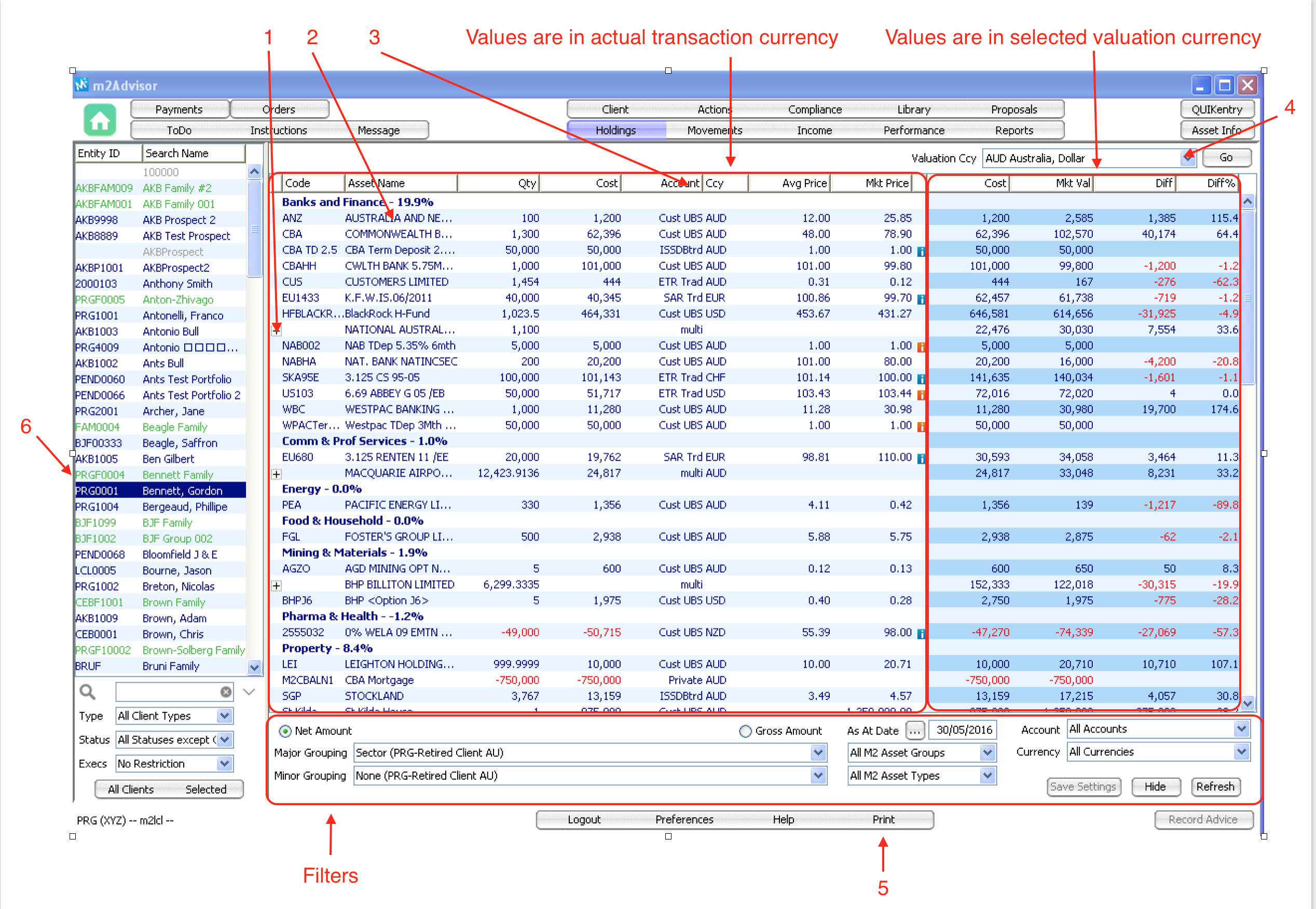
There are three main panes (right, left and bottom) in the Holdings View:
The left pane shows the asset values in their actual transaction currency.
The right pane shows the asset value in their 'selected' valuation currency. You can change the selected valuation currency on the drop-down list at item 4 shown above.
The bottom panel has multiple filters available. You can filter the holdings view by Date, Groupings, Accounts, Currency, Net Amount and Gross Amount. (Note that Groupings can be customised in Asset Info View.)
Item 1 - One asset held by multiple custodians
If a stock is held by multiple custodians, each at a different quantity, the Holding View will automatically aggregate the stock up into a single total amount. You can then view the breakdown of each custodian holdings of that stock by clicking on the '+' button.
Example: BHP Top View Level

Example: BHP Breakdown View (Click on the '+' sign next to the stock name.)

Item 2 - Asset holdings drill down
You can view individual transactions that make up the total holdings of an asset by double-clicking on the asset line.

Item 3 - Custodian is represented by 'Account'
Each custodian is represented by an Account. As a result, you can clearly identify which stock is held by which custodian.
Item 4 - Portfolio valuation currency
You can change the holdings view valuation currency to a different currency by selecting from this drop-down list to give you a quick performance calculation in the right pane.
Item 5 - Print
You can print the current holdings view by clicking ‘Print’.
Item 6 - Family Group
You can group multiple portfolios together in one view. We call this ‘family grouping.' This aggregates all portfolios together in the one Holdings View.
Groups are represented by the green colour on the client list.
Example: Bennett Family consists of Gordon Bennett and Phillipe Bergeaud. When this family group is selected, and then Holdings is clicked, the combined portfolios of these 2 clients are shown.
For more information on managing family groups, refer to the M2 User Guide ‘How to Add a Family Group’.
Filter Criteria
Net Amount & Gross Amount
Net amount takes into account the transaction cost, while gross amount does not take into account the transaction cost in calculating the total cost of the asset.
Customise View
You can change the settings to only show assets by currency, custodian, asset groups, asset types and dates by using the dropdown list in this section.
Comments
0 comments
Please sign in to leave a comment.