
Navigating to the Movement View
To view the movements of a client’s portfolio:
- Select a client name on the left pane.
- Click on the Movements button on the top.

Movements View
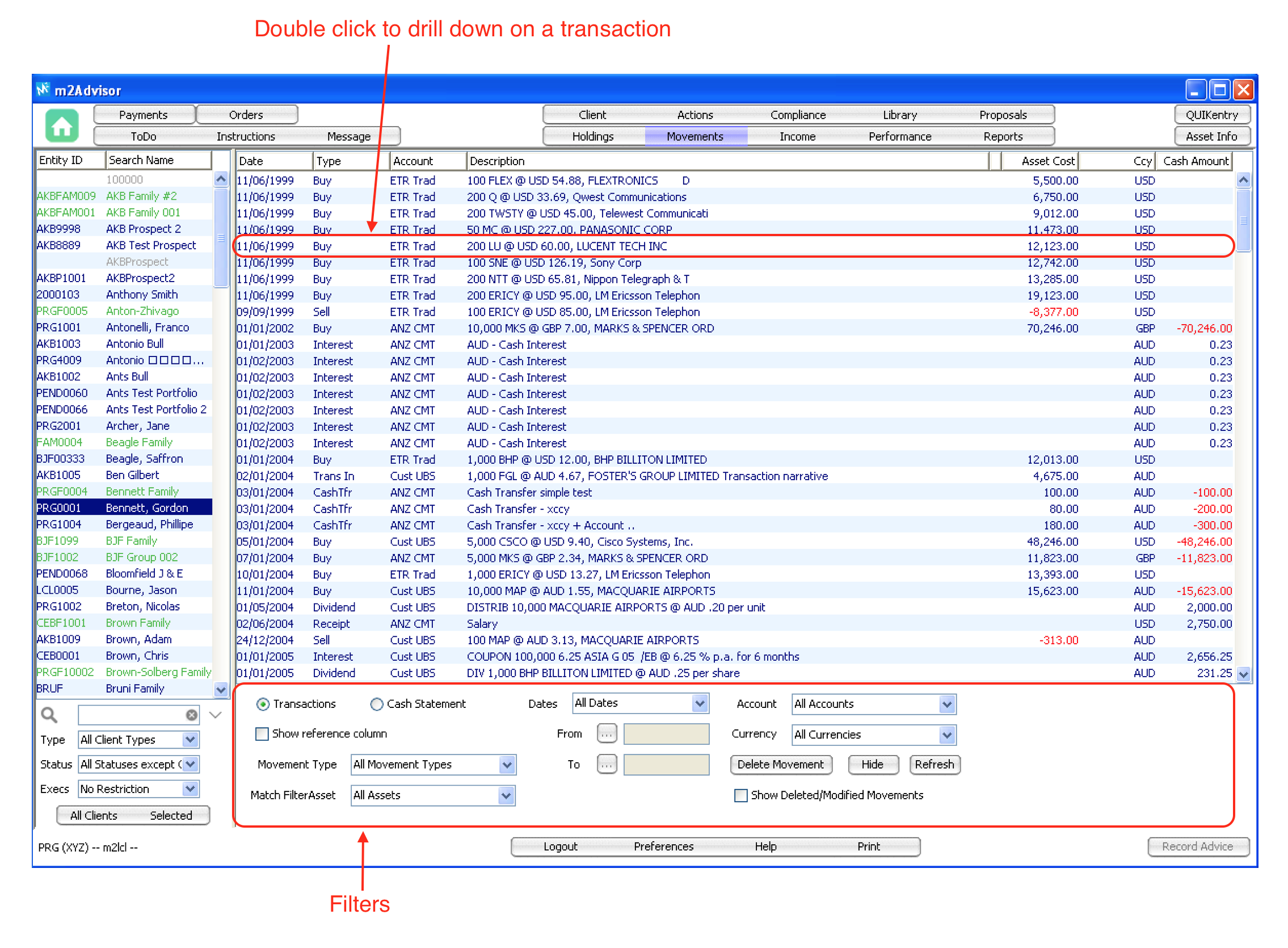
The Movements screen shows all transactions that have occurred on the client's portfolio. This includes cash transfers in the bank accounts, assets buys and sells, interest, dividends etc.
Note: transactions are sourced from linked account feeds, or from manually input transactions in m2Advisor.
Drill down view
You can drill down on each transaction by double-clicking on the transaction.
Drill down view will provide you more information about the transaction and also allows you to edit/delete the transaction (e.g. asset breakouts).

Filters
You can filter the Movement View by Date, Movement Type, Asset, Accounts and Currency.
There are 2 views you can select for movements:
- Transactions - this view shows all transactions without a running balance.
- Cash statement - this view shows transactions with a running balance. As a result, this view will require you to specify an Account and Currency by using the adjacent filters.
You can print the current Movement View by clicking ‘Print’.
Comments
0 comments
Please sign in to leave a comment.