
In the M2 applications, a Tag is a keyword or term that can be assigned to an object, to categorise that object. There are three types of object to which you can attach a Tag:
- Clients/Entities
- Contacts
- Library Objects
Tags can help you group and search specific objects in a customisable way.
Tag Types
There are five types of Tag:
| Tag Type | Description |
| Personal | Tags created by a user for personal use |
| Company | Tags created by an Admin user for use by all users in a Company |
| Controller | Tags created by an Admin user for view or use by all Companies within a Controller |
| Tag Group | A way of grouping a number of associated Tags under a single heading (e.g., Client Interests) |
| Compliance Tags | Tags specific to Compliance events in the Compliance module |
Mandatory vs Optional
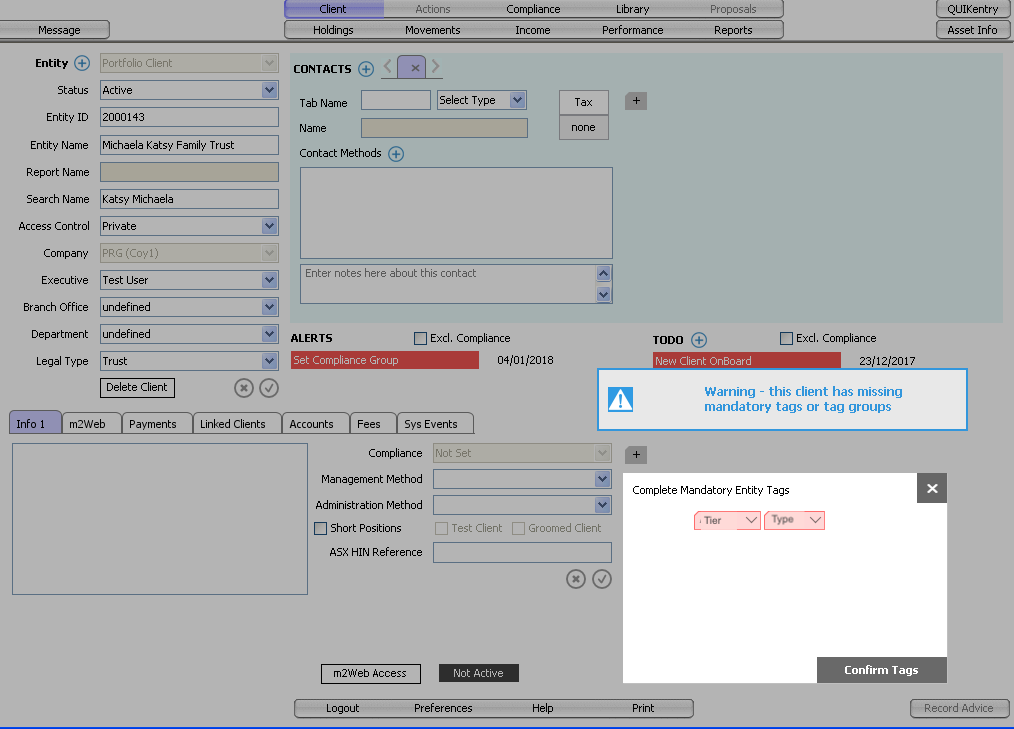
Tag Groups for Company and Controller Tags can be either optional or mandatory. Where a Tag Group is Mandatory, users are warned that a Mandatory Tag does not exist and are prompted to add it, when viewing the Client Entity/Contact/Library object in m2Advisor.
Example usage: A Company might require that one of a selection of Tiers be applied to every Client. A Mandatory Tag Group for Entities can be set up with the various Tiers as Tags in that Group. Users will be prompted to apply one of those Tags to the Client Entity.
Example of a Client Entity missing Mandatory Tags:
Multiples
Tag Groups for Company and Controller Tags can be set up to allow Multiples (2-99) or 1. Where a Tag Group is set to Multiples, this means multiple Tags in that Tag Group, up to the number specified, can be attached to an object. Where Multiples box is not ticked, the maximum number of Tags in that Group that can be attached to an object is 1.
Example usage: A Company might set up a Tag Group for Entities called 'Demographics' with a selection of various demographic categories as Tags, and a Multiple setting of 10. Users will be able to assign a maximum of 10 Demographic Tags to the Client Entity.
Display
Tags are displayed as colour-coded labels in the associated areas of m2Advisor.
| Colour | Description |
| Green | Personal Tag |
| Solid Yellow | Optional Company Tag |
| Yellow with Red Border | Mandatory Company Tag |
| Solid Pink | Optional Controller Tag |
| Pink with Red Border | Mandatory Controller Tag |
| Blue | Compliance Tag (Compliance module only) |
Controller Tags Groups: Company visibility and usage control
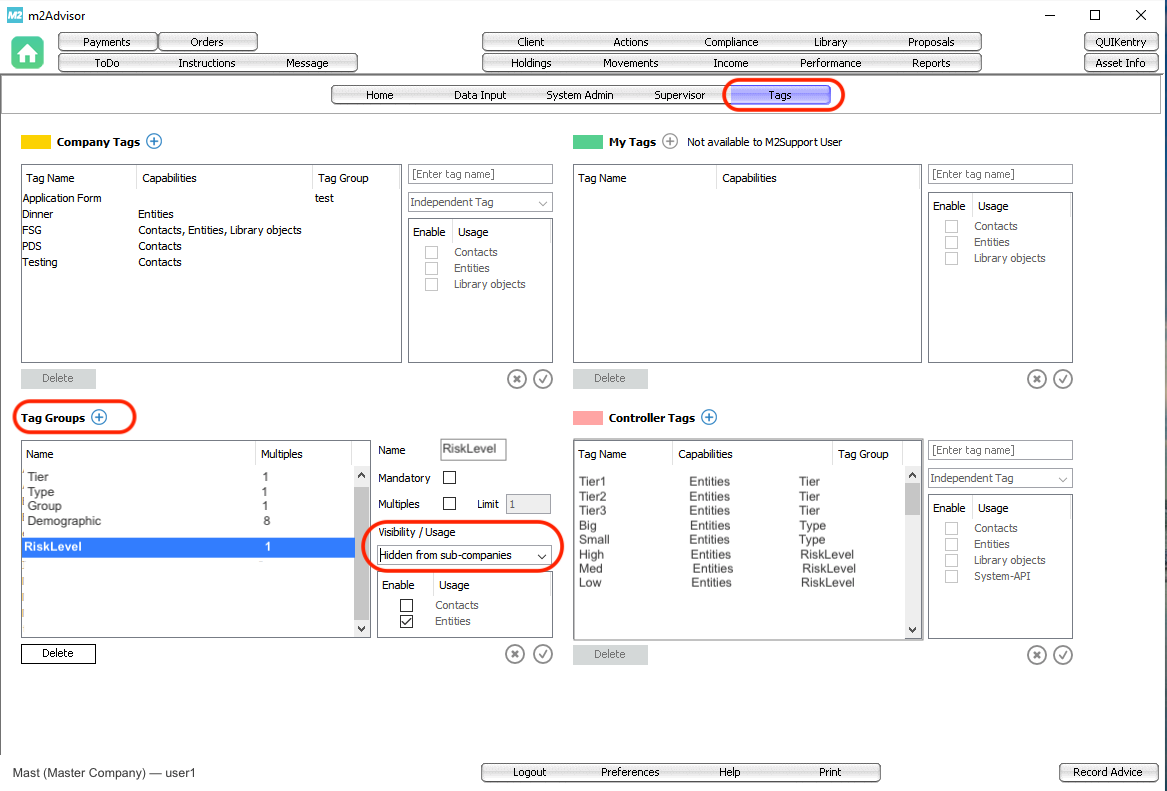
A Controller Admin user can set up Controller Tag Groups with varying levels of visibility and usage to Company users:
| Visibility Setting | Impact |
| Hidden from sub-companies | Tags are not visible to Sub-Company users |
| Visible to sub-companies | Sub-Company users can see Tags on Client Entities/Contacts/Library objects, but cannot add or remove them. |
| Visible and usable to sub-companies | Sub-Company users can add or remove Tags on Client Entities/Contacts/Library objects. |
This is useful for cases where Controller users need to control certain Tags on Company entities, such as Tags used for categorising Clients or Contacts that Company users might not need to see or use, or might need to see but should not be able to add or remove.
Tags screen showing the Controller Tag Groups Visibility setting:
Searching by Tags
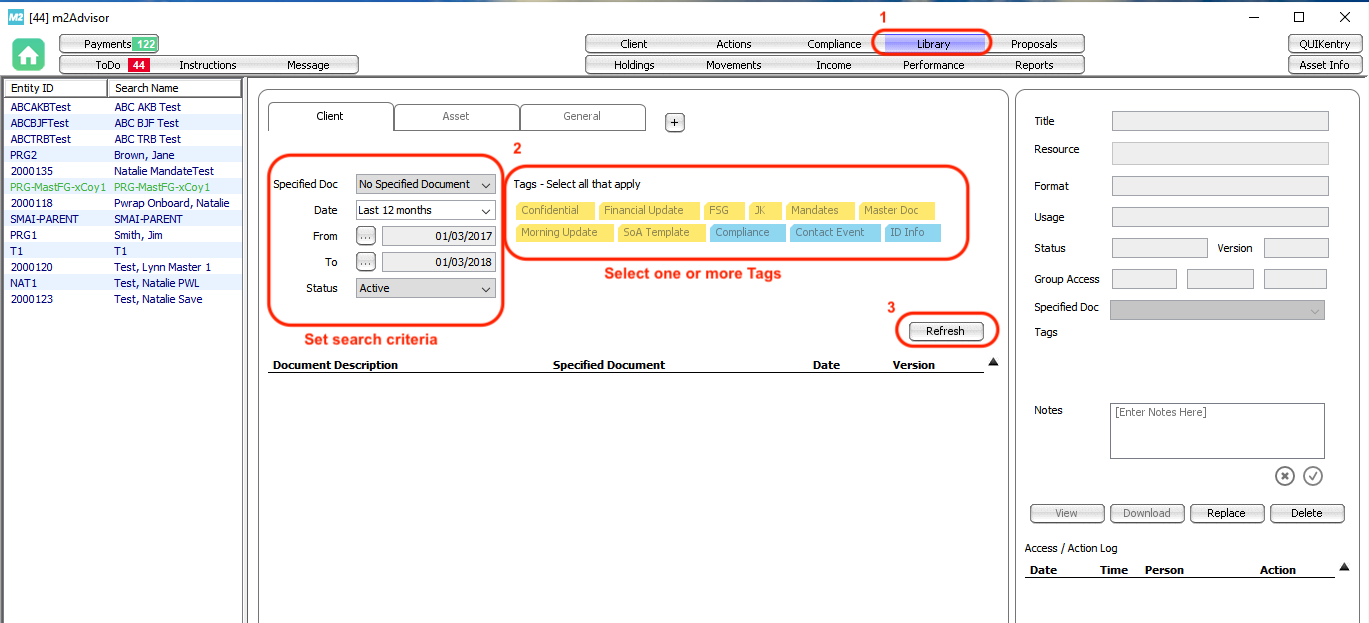
You can specify Tags in the Library screen search function to return a clickable list of documents with the specified Tags:
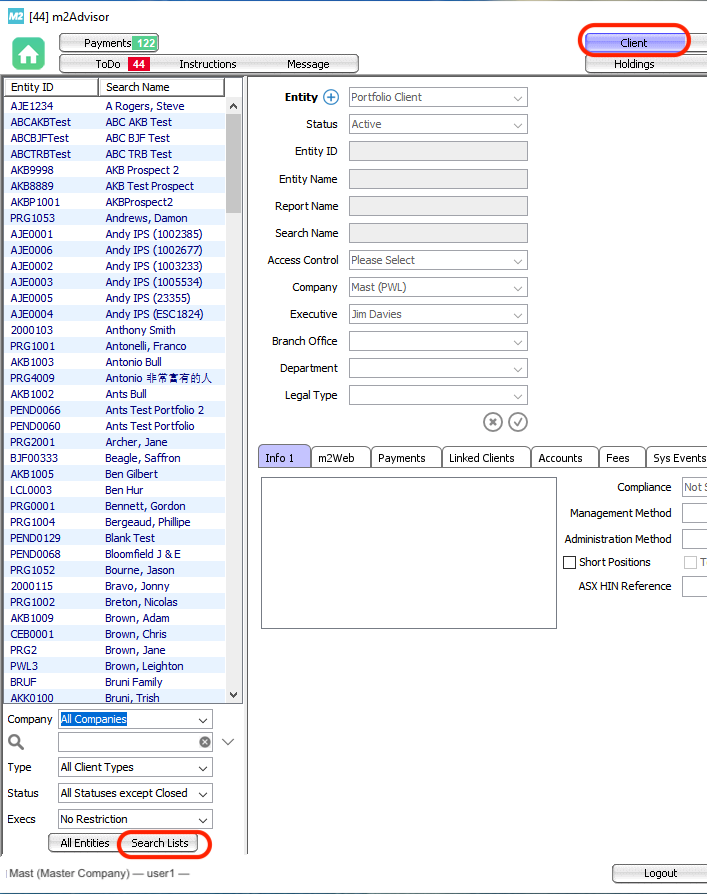
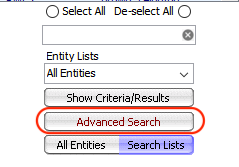
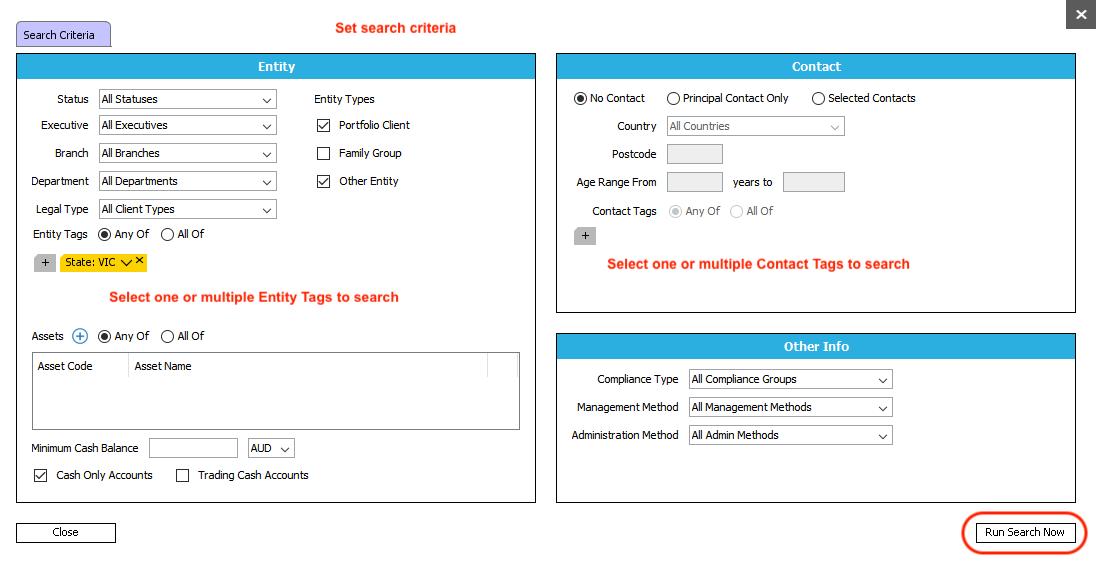
You can search for Client Entities or Contacts by Tag(s) using the Advanced Search Lists function from the Client List panel in the Client screen.
Click Search Lists, then Advanced Search to open the Search Criteria pop-up:
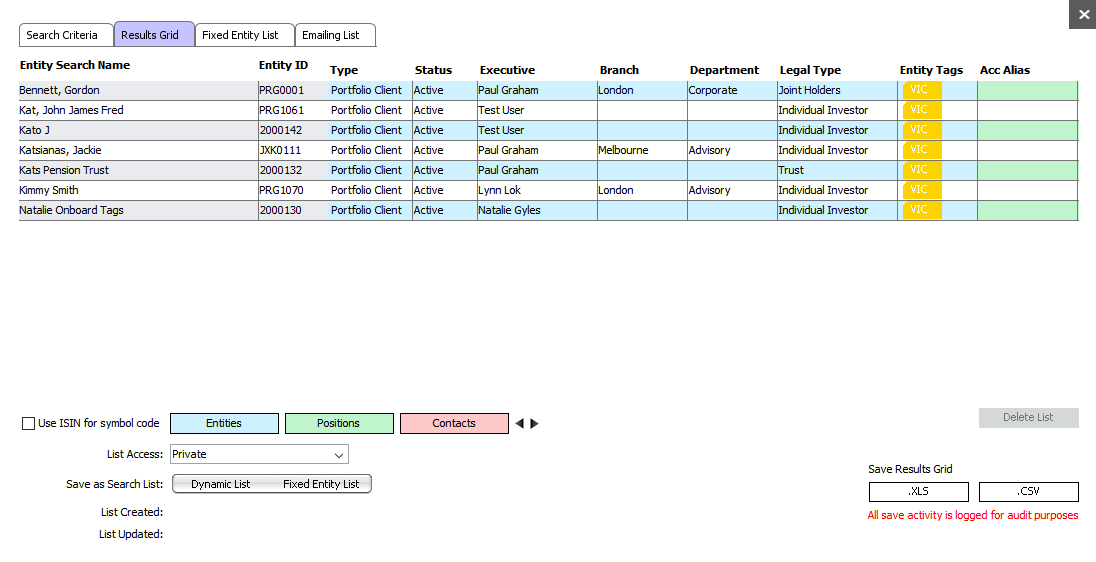
When the search result comes up, you can save the search as a Fixed list or a Dynamic list (will return all entities that currently match search criteria), and can also export the list for mailing or other purposes.
Comments
0 comments
Please sign in to leave a comment.